
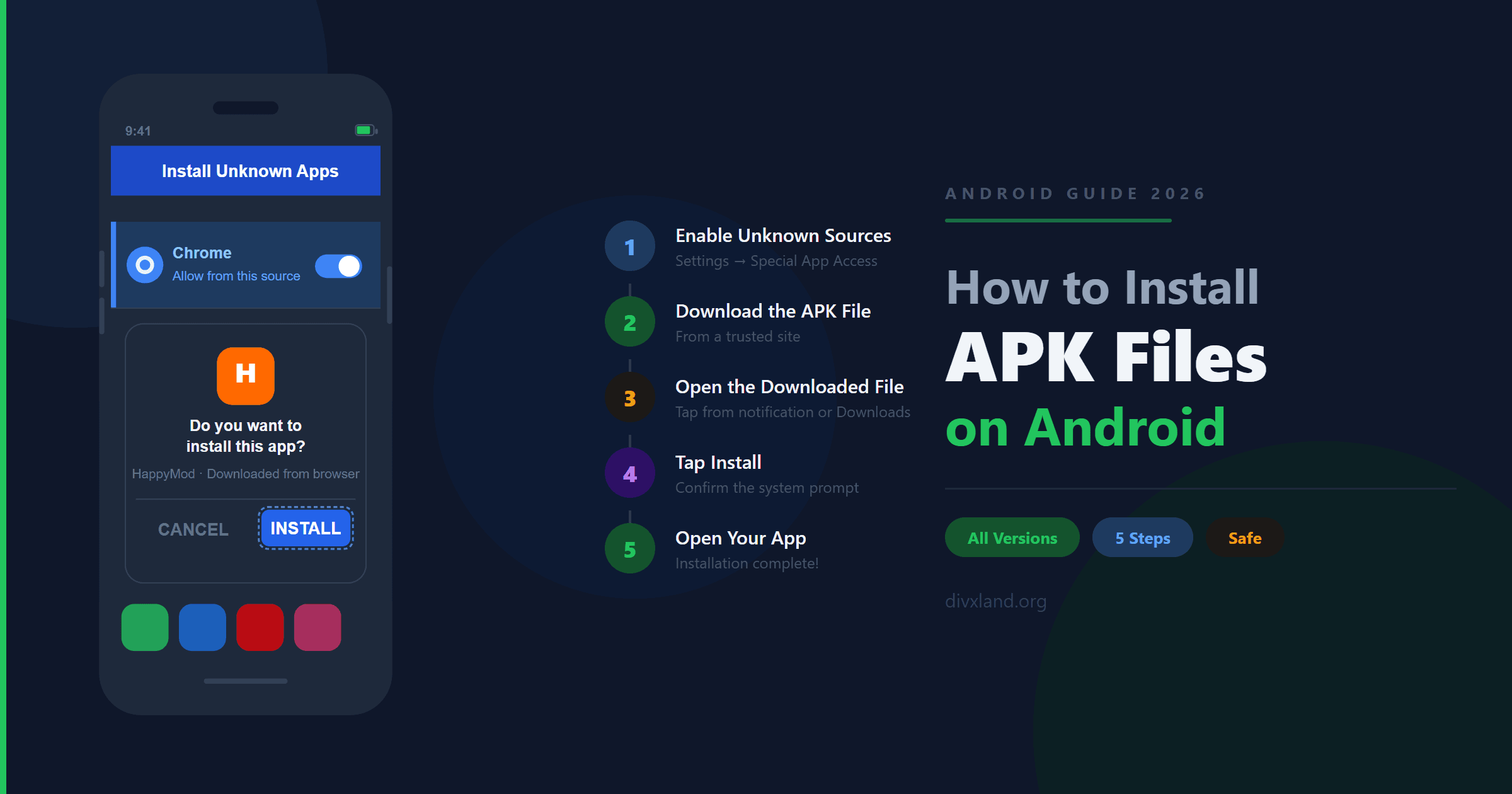
Android lets you install apps from outside the Google Play Store — a process called sideloading. This is useful when an app isn’t available in your country, was removed from the Play Store, or you need an older version. APK files are perfectly safe when downloaded from trusted sources. This guide shows you exactly how to do it.
📋 Table of Contents
What is an APK File?
APK stands for Android Package Kit. It’s the file format Android uses to install apps — the same way Windows uses .exe files and Mac uses .dmg files. Every app on your Android phone is an APK under the hood. When you install from the Play Store, Android handles the APK automatically behind the scenes. Sideloading simply means doing that final step yourself.
Is It Safe to Install APK Files?
Yes — when you download from reputable sites. APK files from verified sources like Divxland, APKMirror, or APKPure are safe to install. The risk comes from random, unverified websites that can bundle malware into APK files.
How to Install APK on Android: Step-by-Step
Follow these five steps to install any APK file on your Android device.
Step 1 — Enable “Install Unknown Apps”
By default, Android blocks installations from outside the Play Store. You need to allow it for whichever app you’ll use to open the APK (your browser or file manager). This is a one-time step.
On Android 8.0 and above (most phones today):
- Go to Settings
- Tap Apps (or “Apps & Notifications”)
- Tap the three-dot menu → Special App Access
- Tap Install Unknown Apps
- Select your browser (Chrome, Firefox, etc.) or Files app
- Toggle “Allow from this source” to ON
Enable “Allow from this source” for your browser
On Android 7 and below: Go to Settings → Security and enable “Unknown Sources”. This is a single global toggle (not per-app).
Step 2 — Download the APK File
Open your browser and go to a trusted APK site. Search for the app you want and tap the Download button. The APK file will save to your phone’s Downloads folder.
Once the download finishes, you’ll see a notification at the top of your screen. You can tap it directly to open the file, or continue to Step 3 to find it manually.
Step 3 — Open the Downloaded APK File
You have two ways to open the downloaded APK:
- From the notification bar: Pull down from the top of your screen and tap the completed download notification.
- From the Files app: Open your file manager → go to Downloads → find the APK file → tap it.
Open your Downloads folder and tap the APK file
Step 4 — Review Permissions and Tap Install
Android will show a system prompt asking if you want to install the app. Review the information — it shows the app name and warns that it’s from outside the Play Store. If you trust the source, tap Install.
Tap “Install” to confirm — takes a few seconds
If you see a Play Protect warning saying it can’t verify the app, tap “Install anyway”. This is a standard warning for all apps installed outside the Play Store — it doesn’t mean the app is dangerous.
Step 5 — Open the App
Once installed, you’ll see an “App installed” confirmation screen. Tap Open to launch the app immediately, or tap Done to close and find it later in your app drawer.
Tap “Open” to launch your app right away
That’s it — the app is now installed and will appear in your app drawer like any other app.
Finding the Setting on Different Android Versions
The location of the “Install Unknown Apps” setting varies by Android version. Use this table to find it on your device:
| Android Version | Where to Find It |
|---|---|
| Android 14 / 15 Samsung, Pixel 2023–2024 | Settings → Apps → ⋮ menu → Special App Access → Install Unknown Apps → [Select your browser] |
| Android 12 / 13 Most phones 2021–2022 | Settings → Privacy → Special App Access → Install Unknown Apps → [Select your browser] |
| Android 10 / 11 Most phones 2019–2020 | Settings → Apps & Notifications → Advanced → Special App Access → Install Unknown Apps |
| Android 8 / 9 (Oreo / Pie) | Settings → Apps & Notifications → Special App Access → Install Unknown Apps |
| Android 7 and below (Nougat and older) | Settings → Security → Unknown Sources → Enable toggle (one global setting) |
| Samsung (One UI) | Settings → Biometrics and Security → Install Unknown Apps |
| Xiaomi (MIUI) | Settings → Privacy → Special Permissions → Install Unknown Apps |
| Huawei / Honor | Settings → Security → More Settings → Install Apps from Unknown Sources |
Common Errors and How to Fix Them
“App not installed” error
This is the most common error. It usually means one of three things: your Android version is incompatible with the APK (the APK requires a newer Android), there isn’t enough storage space, or an older version of the same app is conflicting. Try uninstalling the existing version first, then reinstall.
“Parse error” / “There is a problem parsing the package”
This means the APK file is corrupted or incomplete. Delete the file and re-download it from a trusted source. This often happens when a download is interrupted midway.
“Blocked by Play Protect”
Google Play Protect scans all APK installs and sometimes shows a warning even for safe files. If you downloaded from a trusted site like Divxland or APKMirror, you can safely tap “Install anyway”. If you’re uncertain about the source, cancel and re-download from a verified site.
“Install blocked” — can’t tap the button
You haven’t enabled “Install Unknown Apps” for the app you used to open the APK. Go back to Step 1 and enable the permission specifically for your browser or file manager app.
Frequently Asked Questions
No — APK apps installed manually do not auto-update through the Play Store. You’ll need to download and install the newer version manually. Some apps have a built-in update check inside the app itself. If you install an APK and later find it on the Play Store, you can install the Play Store version over it and auto-updates will resume.
No. Once the app is installed, the APK file is no longer needed. You can delete it from your Downloads folder to free up storage space.
Yes — sideloading works on all Android devices that run Android 4.0 or higher. This includes Samsung, Xiaomi, Huawei, OnePlus, Oppo, Vivo, Google Pixel, and any other Android phone. It also works on Android tablets and some Android TV devices.
No. Installing APK files is a standard Android feature and does not void your warranty. Only rooting your device or flashing custom ROMs can affect warranty status, depending on your manufacturer.
Yes — it’s a good security practice. After installing your APK, go back to Settings → Special App Access → Install Unknown Apps and toggle off the permission for your browser. This prevents accidental installs from malicious sites in the future.
An XAPK file is a bundle that contains the main APK plus additional OBB data files (usually for games with large assets). To install an XAPK, you need a special app like APKPure or ZArchiver that can unpack and install the bundle correctly. Standard APK files install directly without any extra tool.
Quick Summary
- Enable “Install Unknown Apps” in Settings for your browser or file manager
- Download the APK from a trusted site like Divxland.org
- Tap the downloaded file in your notifications or Downloads folder
- Tap Install when Android asks for confirmation
- Tap Open and enjoy your app